

Running campaigns across regions demands precise timing. Learn how to change time zone facebook ad account so your ads align with each audience’s active hours. In this guide, NEMI Ads shares a clear, step-by-step path to update clocks and currency, prevent pacing errors, and keep reports consistent. You’ll also see practical tips for scheduling by market and managing multi-zone setups without wasted spend. Proper timing and audience alignment can help you generate high-quality Facebook ad leads, making faster decisions as your reach grows.
1. The Impact of Time Zone and Currency on Your Ad Account
Shifts to clock settings and billing units affect delivery, spend, and insights. Before you change time zone facebook ad account, review the points below to avoid pacing or tracking issues.
- Campaign scheduling: The account clock controls when ads run. After updating the time zone, all pre-set windows move to the new local time. Recheck start and end hours so flights match your plan. For setup verification, many users look up how to adjust time zones in Ads Manager.
- Reporting accuracy: Analytics recalculate under the new clock. Comparisons across dates can shift. Once you update the time zone, align every dashboard to the same reference to keep trends clear and consistent. To ensure accurate data across all platforms, leveraging Facebook ads analytics tools can help you track and compare performance consistently, regardless of time zone changes
- Currency and budgets: When the denomination changes, daily caps, lifetime totals, and invoices reflect the new unit. After the update, confirm your currency and review spending limits to prevent under-delivery or overspending. Understanding the cost of boosting a post on Facebook can help you better manage your budget and set appropriate spending limits to ensure optimal campaign performance
- No reversal: These updates are permanent. Double-check the correct clock and currency before applying changes.
2. How to Change Time Zone in Facebook Ads Manager
Changing your ad account’s time zone helps align reports, schedules, and billing with your local time. Follow these simple steps to make the update correctly.
Step 1: Go to Payment Settings in Meta Ads Manager. You may need to re-enter your password.
Step 2: In Business Information, select Edit.
Step 3: In Currency and Time Zone, open the drop-down and choose your new time zone. Click Save.
Step 4: Click Continue to confirm.
Note: The default time zone for a new ad account is Pacific Standard Time (PST). Confirm the correct time zone before creating a new campaign.
3. Important Notes When You Change Time Zone on Facebook Ad Account
Changing the time zone in your ad account can affect how your campaigns run and how data appears. Keep these key points in mind to avoid mistakes or performance issues.
- Impact on campaign scheduling: Changing the time zone shifts ad delivery and all preset schedules to the new local time. Review every schedule after the update.
- Data consistency and tracking: After the update, analytics and breakdowns realign to the new time zone. This can slightly change how your results appear. Adjust report time ranges and dashboards to keep your tracking accurate and comparable.
- Multiple accounts: If you handle several ad accounts or Pages, update each account separately. Repeat the steps for every account.
- Pre-launch check: Before starting a new campaign, confirm the time zone is set correctly to prevent delivery issues.
4. Create a New Facebook Ad Account After Changing Time Zone
Creating a fresh account helps keep delivery clean for Ads on Video Facebook and prevents timing mismatches. Follow these concise steps to stay aligned with your updated clock and currency for Ads on Video Facebook.
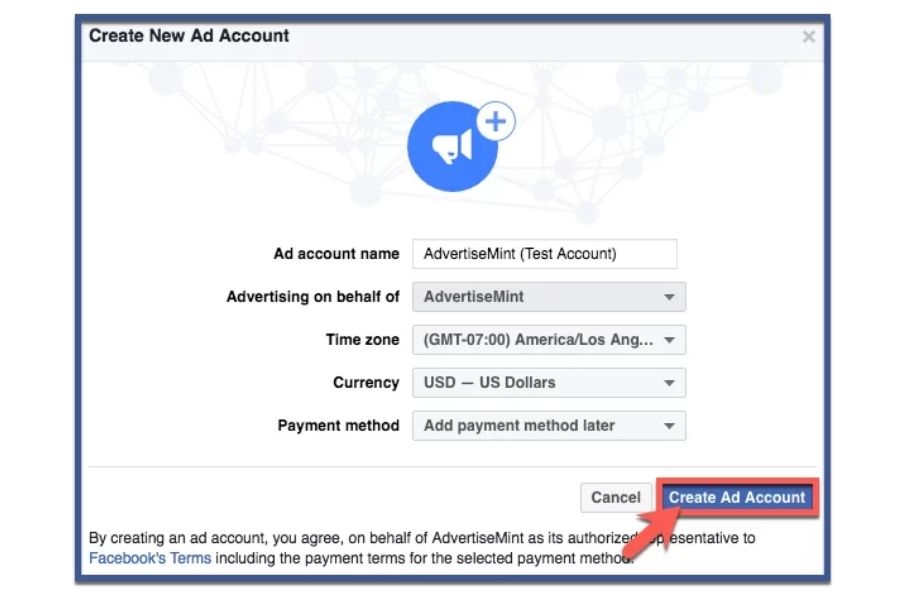
Step 1: Open Business Settings.
Step 2: Choose Accounts → Ad Accounts.
Step 3: Click Create New Ad Account.
Step 4: Enter the name and purpose. Select the correct time zone. Pick the proper currency.
Step 5: Click Create to finish.
After setup, rebuild campaigns and schedules. Old data will not move to the new account. Set up targeting, budgets, and reports again for Ads on Facebook. Check that delivery times match local hours to keep pacing steady and insights clear for Ads on Facebook.
To confirm settings, search change time zone Facebook ad account, how to change time zone on Facebook ad account, or change time zone in Facebook ad manager. This reset keeps tracking accurate and helps prevent common mistakes for Ads on Video Facebook.
5. How to Manage Campaigns Across Multiple Time Zones
Coordinating delivery by region keeps spend efficient and results clear. When you change time zone facebook ad account, align every plan to local hours for consistent pacing.
- Set per-account clocks: On new setups, select the zone that matches your target market. Verify schedules before launch to avoid off-hour delivery.
- Use ad scheduling: Schedule ads to match your audience’s most active hours. Review start and end times to make sure impressions land when users are online.
- Segment by region: Build campaigns or ad set groups by geography and time zone for cleaner budgets and accurate reporting. If needed, check Ads Manager settings to confirm the correct panels.
- Monitor in real time: Track performance as it updates with the new clock. Ensure your dashboards reflect the same time zone for accurate comparisons.
- Automate by local performance: Create simple rules to pause, adjust budgets, or change bids based on each zone’s results.
Careful planning after a time zone change keeps timing clear, budgets stable, and insights accurate in every market.

6. FAQs About Change Time Zone in Facebook Ad Manager
6.1 Does Facebook automatically adjust for Daylight Saving Time (DST)?
Yes. Facebook automatically applies DST changes based on the region you select when setting your account time zone. You don’t need to adjust it manually. The account clock will update automatically when DST begins or ends.
6.2 Can multiple ad accounts have different time zones?
Yes. Each ad account has its own time zone and currency settings. You can create separate accounts for different regions to ensure campaigns run according to each market’s local time.
6.3 How can I check which time zone my ad account is using?
Go to Meta Ads Manager → Payment Settings → Business Information. Under Currency and Time Zone, you’ll see the active zone and currency currently applied to your ad account.
Mastering how to change time zone facebook ad account keeps campaigns synced with audience hours and makes reports consistent. Set the correct clock and currency before launch to avoid pacing issues, inaccurate data, and wasted spend. Rebuild only when needed, and always verify schedules after any change. If you’re looking to scale quickly or avoid setup delays, consider using a Facebook ads account for rent to get started without waiting. With NEMI Ads, you get clear steps, checklists, and proven methods to execute quickly and accurately. Use this guide to protect delivery and launch campaigns that reach your audience at the perfect moment.