
Facebook Ads Manager Campaigns are the backbone of effective social media advertising. Understanding how to create, manage, and optimize your campaigns ensures your ads reach the right audience, drive engagement, and maximize ROI. In this guide, we break down everything you need to know to run successful campaigns on Facebook.
1. What Is the Facebook Ads Manager Campaigns?
Facebook Ads Manager Campaigns are the main hub for running ads on Facebook, Instagram, Messenger, and Audience Network. They help businesses organize, monitor, and optimize all ad activity in one place.
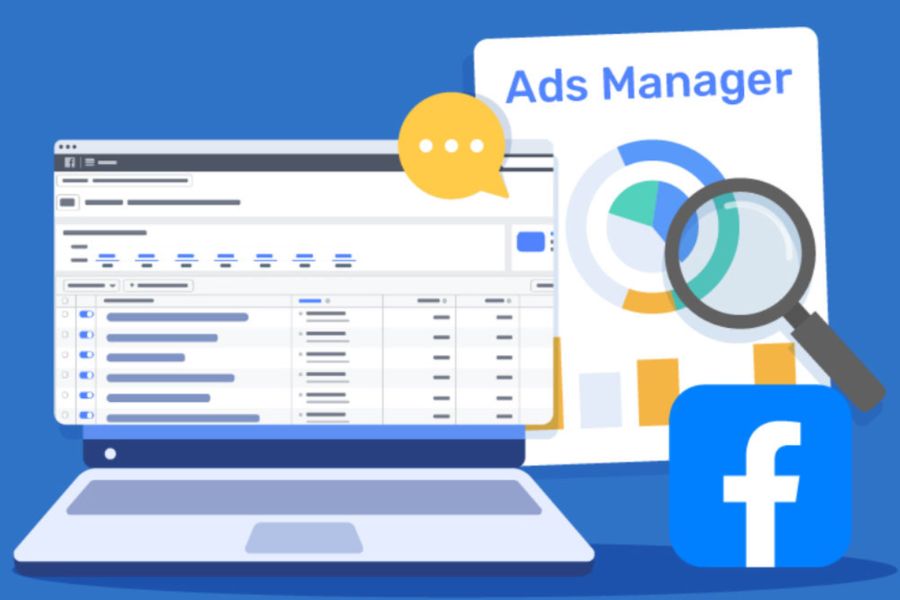
With facebook ads manager campaigns, you can set clear goals, control budgets, and choose the best audience for your ads. Campaigns are structured in a hierarchy with campaigns at the top, followed by ad sets, then individual ads. This setup makes managing multiple ads simple and effective.
Using the mobile app, you can manage your facebook ads manager campaigns anytime. You can create, edit, track performance, and adjust schedules directly from your phone.
2. Key Features of Facebook Ads Manager Campaigns
Facebook Ads Manager Campaigns provide marketers with a complete toolkit to create, manage, and optimize advertising across Facebook, Instagram, Messenger, and Audience Network. Each feature is designed to help businesses reach the right audience, control spending, and improve overall campaign results.
2.1. Create Brand-New Ads
With facebook ads manager campaigns, you can build ads from scratch. Upload creative assets, write ad copy, and preview how your ads appear on different devices. This ensures every ad aligns with your brand and business goals.
2.2. Choose Your Audience
Define who sees your ads with precise targeting. Adjust audience parameters to reach a broad group or a very specific demographic.

2.3. Set and Manage Your Ad Budget
Control your spending by setting daily or lifetime budgets for each campaign. You can modify budgets anytime to match changing marketing needs. Proper budget management ensures cost efficiency across all campaigns.
2.4. Running ads on multiple placements at the same time
Automatically distribute ads across Facebook’s network using automatic placements. This flexibility helps maximize reach and delivers better performance.
2.5. Adjust Your Campaigns
Modify budgets, targeting, ad placements, or creative content at any time. You can pause, duplicate, or relaunch campaigns easily, allowing marketers to maintain full control over all facebook ads manager campaigns.
2.6. Improve Performance with Dynamic Creative
Use dynamic creative to automatically personalize ads. The system combines images, videos, and text to deliver the best version of each ad to different audience segments.
2.7. Test to Identify the Best-Performing Ads
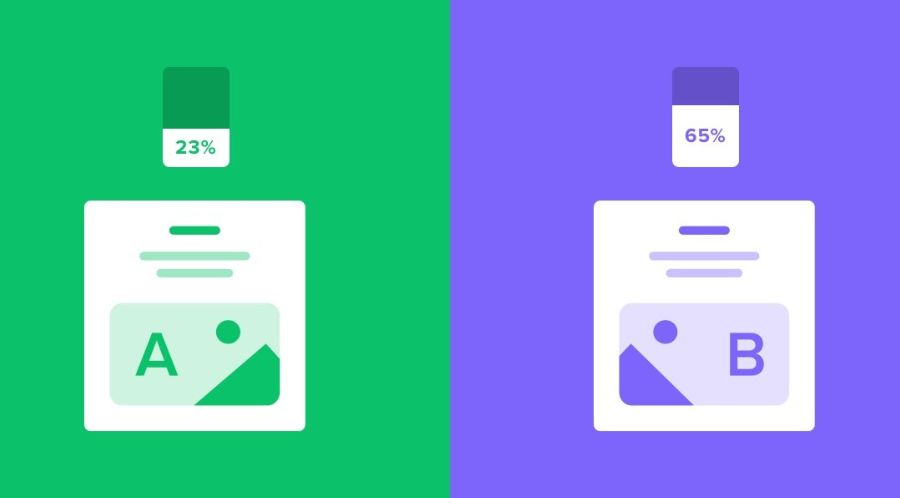
Create A/B tests to evaluate which audiences, content, placements, or ad sets perform best. Testing helps refine campaigns and improves return on investment.
2.8. View Real-Time Insights
Track campaign progress with real-time reporting tools. Monitor trends, identify issues, and adjust images, budgets, or targeting to enhance campaign performance.
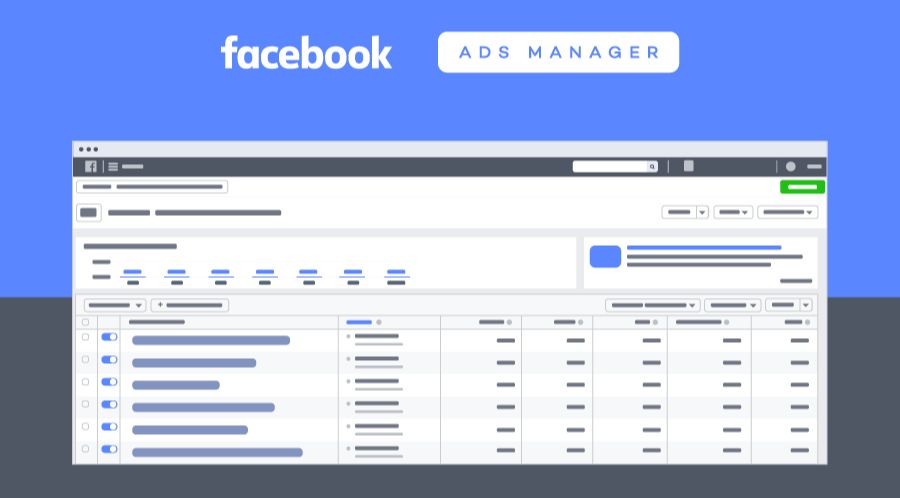
3. How to Access Facebook Ads Manager Campaigns on Facebook
Accessing facebook ads manager campaigns is straightforward. You can choose the method that best fits your workflow. Each approach gives you quick entry to manage, monitor, and optimize your ads.
3.1. Direct URL Access (Fastest Way)
The quickest way to reach your campaigns is by using a direct link. This method avoids clicking through menus and takes you straight to your Ads Manager dashboard.
Type facebook.com/adsmanager in your browser and log in.
- Lands you immediately on your campaign dashboard.
- Works consistently, bypassing interface changes.
- Bookmark it for one-click access.
- Switch between ad accounts using the top-left selector.
3.2. Desktop Menu Navigation
If you are already on Facebook, you can reach Ads Manager via the menu. This method is useful when switching between personal and business tasks without opening a new tab.
- Log in at Facebook.com.
- Click the menu icon (three lines) in the top-right corner.
- Go to the Professional section and select Ads Manager.
- If hidden, click See More.
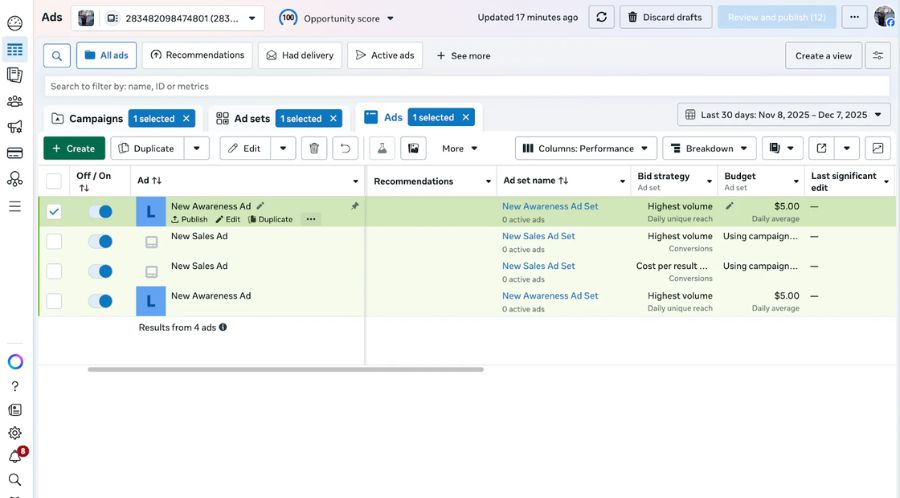
3.3. Through Meta Business Suite
Meta Business Suite offers a unified view of your business pages and advertising. Use this method to manage multiple pages or combine paid and organic insights.
- Visit business.facebook.com and log in.
- Click All Tools in the left sidebar.
- Under Advertise, select Ads Manager.
3.4. Mobile App Access
Managing campaigns on the go is now easier with the Meta Ads Manager app. This option is perfect for quick checks or emergency adjustments when you are away from a desktop.
- Download Meta Ads Manager on iOS or Android.
- Log in with your Facebook account.
You can:
- Monitor campaign performance.
- Pause, resume, or duplicate campaigns.
- Adjust budgets and edit ad text.
You cannot: - Create complex campaign structures.
- Upload creative assets easily.
3.5. From Your Facebook Business Page
You can also access Ads Manager directly from your business page. This method is ideal when boosting posts or quickly creating ads linked to content you are already managing.
- Open your Facebook Business Page.
- Click Promote on a post or Ad Center in the left sidebar.
- Select Go to Ads Manager.
4. How to Create an Ad Account in Facebook Ads Manager Campaigns on Meta
Creating your first ad account in facebook ads manager campaigns is the initial step to start advertising on Facebook, Instagram, Messenger, or Audience Network. Follow these steps to ensure proper setup.
4.1. Step 1: Prepare Your Facebook Account
If you do not have a Facebook profile, create one first. When you register, a default ad account and ad account ID are automatically generated.
Note: You can run ads from an Instagram business account without a Facebook ad account. However, this limits access to certain settings and features of a full ad account.

4.2. Step 2: Access Your Ad Account
If you already have a Facebook account, an ad account and its ID are linked automatically. To access it:
- Go to Facebook Ads Manager.
- If you only have one ad account, it will be selected by default.
4.3. Step 3: Ensure Proper Page Roles
Before running ads, make sure you have a Facebook Page or have been assigned the role of admin, editor, or advertiser on someone else’s Page. This allows you to create campaigns and manage ads fully within facebook ads manager campaigns.
4.4. Step 4: Set Up a Valid Payment Method
Add a payment option to your ad account to cover advertising costs. Without this, campaigns cannot run.
4.5. Step 5: Create Additional Ad Accounts (Optional)
For businesses needing multiple accounts:
- Set up a Business Profile in Meta Business Suite.
- Create a new ad account or add an existing one to your business asset manager.
Once these steps are complete, your ad account is ready, and you can start building campaigns, targeting audiences, and running ads effectively within facebook ads manager campaigns.
5. How to Launch a Campaign in Facebook Ads Manager Campaigns
Launching a campaign in facebook ads manager campaigns is a structured process that ensures your ads reach the right audience efficiently. Follow these steps carefully to set up your campaign.
5.1. Step 1: Start Your Campaign
Open Facebook Ads Manager and click + Create Campaign.
- Choose your buying method: Auction or Reservation Reach & Frequency.
- Select a campaign objective from the dropdown menu and click Continue.
Meta now defaults to Advantage+ for sales, app, and lead objectives, automatically activating features like optimized audience, placements, and campaign budget.
5.2. Step 2: Name and Categorize Your Campaign
Enter a descriptive campaign name in the text field.
- If your campaign involves housing, employment, financial products, social issues, elections, or politics, select the appropriate Special Ad Category.
- This ensures compliance with Meta’s advertising policies.
5.3. Step 3: Set Your Budget and Schedule
Decide between Campaign Budget or Ad Set Budget.
- For Campaign Budget, choose Daily or Lifetime budget and enter the amount.
- Set your start date and optionally an end date.
- Enable A/B testing if desired to compare ad performance.
5.4. Step 4: Configure Your Ad Set
Enter a descriptive name for your ad set.
- Select conversion events, app placements, or optimization goals.
- Choose the Facebook Page and Instagram account for your campaign.
- Enable Advantage+ placements to let Meta automatically show ads in high-performing locations, or manually edit placements.
5.5. Step 5: Build Your Ads
Enter a descriptive ad name and select the Page and Instagram account representing your business.
- Choose ad format: single image/video, carousel, or collection.
- Upload media or select from existing library.
- Add primary text, headline, description, and call-to-action button as needed.
- Optionally enable Dynamic Creative to automatically optimize combinations of images, videos, and text.
- Preview your ad using the Ad Preview panel.
5.6. Step 6: Review and Launch
Check all settings and previews carefully.
- Click Publish to launch your campaign.
- Meta reviews ads for compliance with its Advertising Policies before they go live.
- Track the campaign’s approval status in the Delivery column within facebook ads manager campaigns.
6. How to Monitor and Edit Campaigns in Facebook Ads Manager Campaigns
Monitoring and adjusting campaigns in facebook ads manager campaigns helps you maximize results and maintain control over your advertising efforts. You can customize reports, track key metrics, and visualize performance efficiently.
Using Report Controls
You can apply default settings or customize reports to show the metrics most important to your business goals. Use the report dashboard to organize and display data relevant to your campaigns.
- Search Bar: Quickly locate campaigns, ad sets, or ads by name, ID, or campaign tags.
- Filters: Narrow results by performance criteria, dates, or other attributes.
- Date Range: Select the period you want to analyze for better insights.
- Breakdowns: Split data by demographic, placement, or other factors to understand trends.
6.1 Customizing Ad Reports
Add columns to display key metrics across four main categories:
- Performance: Results, reach, impressions, and frequency.
- Engagement: Page interactions, clicks, messages, and media views.
- Conversions: Website conversions, purchases, app installs, and in-app purchases.
- Settings: Campaign start/end dates, ad set names, ad IDs, distribution, bids, and objectives.
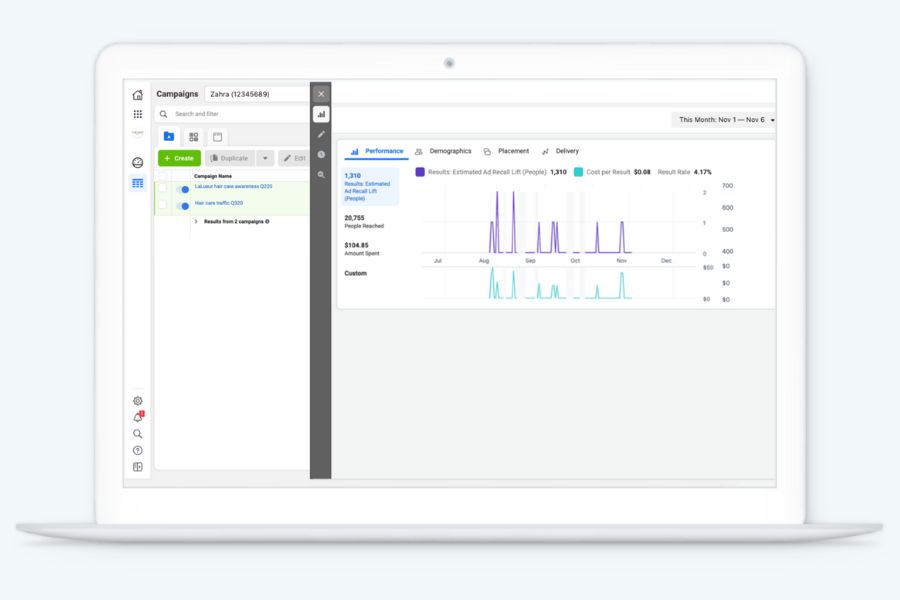
Example: Zahra monitors a video ad in a hair care brand awareness campaign. She adjusts columns to track video views, even though her goal was not engagement, using these insights to plan future campaigns.
6.2. Visualizing Campaign Performance
Charts allow you to see trends beyond numbers. Hover over a campaign, ad set, or ad and select View Chart to explore:
- Performance Charts: Show clicks, reach, and total cost over time. Adjust visible metrics as needed.
- Demographics: Illustrate ad effectiveness by age and gender groups.
- Ad Placement: Display results across platforms like Facebook or Instagram. Check distribution by device type using dropdown menus.
6.3. Additional Insights Tools
Besides facebook ads manager campaigns, you can review ad performance via:
- Facebook Page Insights: Analyze paid content performance directly from your page.
- Instagram Insights: Monitor engagement on posts, stories, videos, and live content. Requires a business or creator account.
These tools complement the Ads Manager dashboard, providing a full view of your campaign effectiveness. Use them to fine-tune strategy, adjust budgets, or test creative variations.
7. FAQs about facebook ads manager campaigns
Managing and optimizing your facebook ads manager campaigns can raise many questions. Here are some common FAQs to help you understand the tools and processes better.
7.1. How can I customize reports in Facebook Ads Manager Campaigns?
You can add or remove columns, apply filters, and use breakdowns to focus on the metrics that matter most for your campaigns. This helps you track performance by reach, clicks, conversions, and demographics.
7.2. Can I monitor multiple campaigns at once in Facebook Ads Manager Campaigns?
Yes, you can view all your campaigns in a single dashboard. Use the search bar, filters, and account switcher to quickly locate specific campaigns, ad sets, or ads for real-time insights.
7.3. How do charts help analyze performance in Facebook Ads Manager Campaigns?
Charts show trends such as clicks, reach, and costs over time. They also visualize demographics and ad placements, making it easier to optimize targeting and improve campaign results.
Mastering facebook ads manager campaigns is essential for any business looking to grow online. By carefully planning, monitoring, and optimizing each campaign, you can achieve measurable results and higher conversions. For businesses that want a fast and efficient way to run high-performing ads without managing accounts themselves, NEMI Ads offers reliable Facebook Ads account rental services, giving you access to ready-to-use ad accounts and expert support to scale your marketing efforts.