
Learning how to add Facebook Messenger to Apple Watch helps users stay connected without constantly checking their phones. With the right setup, you can view chats, send quick replies, and receive instant notifications directly on your wrist. This guide walks you through simple steps, troubleshooting methods, and practical tips to make Messenger work smoothly on your Apple Watch.
Can Apple Watch Make Calls and Send Text Messages?
The Apple Watch can do more than track your fitness. It also helps you stay connected through calls and messages. You can make and receive phone calls directly on your Apple Watch when it’s paired with your iPhone or set up with eSIM. The built-in speaker and microphone let you talk hands-free right from your wrist. However, the sound quality is not as clear as on an iPhone, so this feature works best for short calls.
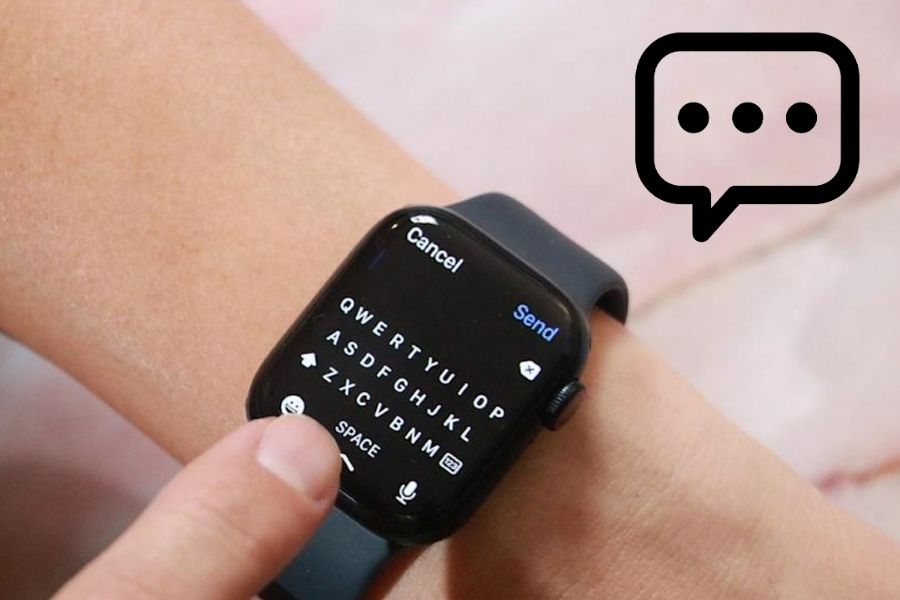
You can also send and receive text messages easily. Once your Apple Watch is linked to your iPhone or Wi-Fi, messages appear instantly. You can reply with voice, quick responses, or emojis. Many users also want to add Facebook Messenger to Apple Watch, especially those managing Facebook ads in Messenger, to get instant chat updates and reply faster.
How to Add Facebook Messenger to Apple Watch
Facebook Messenger is familiar to smartphone users. If you want to use it on your wrist, follow these clear steps.
- Open the Watch app on your iPhone.
- Tap the My Watch tab at the bottom.
- Scroll through the app list until you find Messenger.
- Tap Messenger to open its settings.
- Turn on Show App on Apple Watch by sliding the toggle to On.
- Wait a few moments for the app to install and sync.
- Check the apps on your Apple Watch to confirm Messenger appears.
How to Use Messenger on Apple Watch
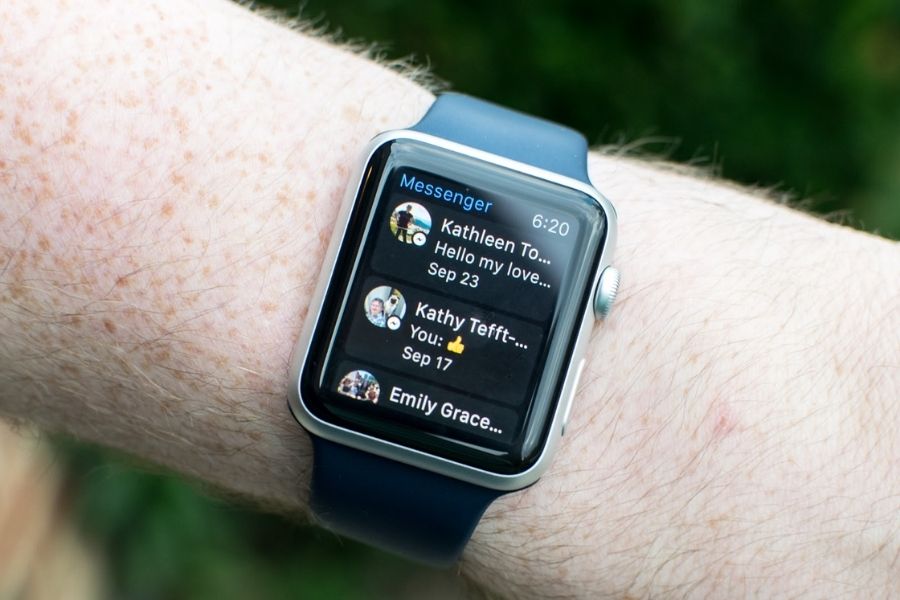
Once Facebook Messenger is installed on your Apple Watch, you can easily view and interact with messages right from your wrist. When a new message notification appears, tap it to open the conversation. To react, press and hold the message, then choose an emoji to express how you feel.
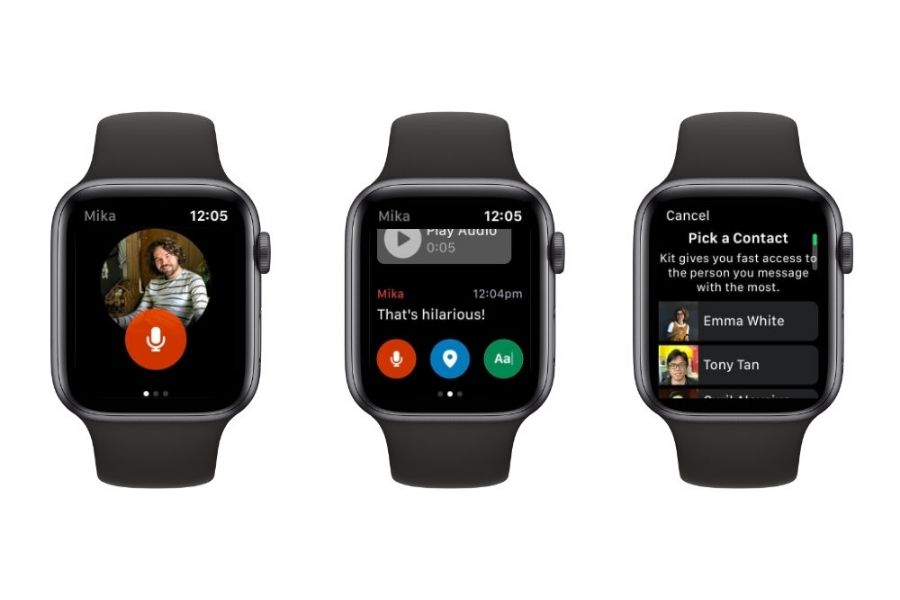
If you want to reply, scroll to the bottom and pick a quick response, send a sticker, or use voice dictation to speak your answer. Your reply will be delivered instantly, and you can later check the conversation on your iPhone for full details. This seamless interaction is a great way to stay responsive, similar to how Facebook ads automation tools help manage high-volume messages.
This simple setup lets you stay connected, react faster, and manage Messenger notifications on Apple Watch without needing your phone nearby.
Troubleshooting – Messenger Not Working on Apple Watch
Below are clear, short fixes to try when Messenger fails on your wrist. Follow each step exactly.
Update watchOS and iOS to the latest version
- On the Apple Watch: Settings → General → Software Update.
- Make sure the battery is above 50% or place the watch on its charger.
- On the paired iPhone: open Watch app → My Watch → General → Software Update.
- Update the phone first, then the watch. This often resolves app access problems.
Update the phone first, then the watch. This often resolves app access problems and ensures compatibility with advanced Meta features like dynamic creative optimization on Facebook.
Restart your Apple Watch
- Press and hold the side button until Power Off appears.
- Slide to turn the watch off.
- After it shuts down, press and hold the side button until the Apple logo shows.
- Wait for the device to finish restarting, then check Messenger.
Force restart your Apple Watch
- Unplug the charger.
- Hold both the side button and the Digital Crown for at least 10 seconds.
- Release when the Apple logo appears.
- Confirm the app opens normally.
Turn on Airplane Mode temporarily
- On the watch, enable Airplane Mode.
- Wait ~30 seconds, then turn it off.
- Test message notifications after toggling.
Reinstall Facebook Messenger on your iPhone
- Delete the Messenger app from the phone.
- Reinstall from the App Store.
- Open the Watch app and re-enable the watch version if needed.
Play a song or temporarily remove the Music app (fix for some notification bugs)
- Put the watch on its charger and connect the iPhone to power.
- Play any track on the iPhone Music app.
- Open Watch app → My Watch → Messenger and toggle Show App on Apple Watch off then on.
- If needed, back up iPhone music, remove tracks, restart devices, then restore music.
Reset your iPhone if issues persist
- Back up the iPhone via iTunes (not iCloud).
- Use Restore iPhone → Erase All Content and Settings.
- Also erase the watch: Settings → General → Reset → Erase All Content and Settings.
- Restore the phone from iTunes, then pair the watch and test.
If you still cannot add facebook messenger to apple watch after these steps, repeat the most relevant fixes above. For common searches use terms like watchOS update, sync notifications, and force restart Apple Watch as guidance while troubleshooting.
Fix Messenger Notifications Not Showing on Apple Watch
If alerts from Messenger do not appear on your wrist, try the steps below in order. Each step is brief and clear.
Enable Notification Permissions for Messenger
- On your iPhone, open the Watch app and go to Notifications.
- Find Messenger and make sure alerts are enabled.
- Confirm Messenger can send sounds, banners, and lock-screen alerts in iPhone Settings → Notifications → Messenger. This helps monitor engagement if you are also tracking the cost of boosting a post on Facebook.
Restart both the iPhone and the Apple Watch
- Press and hold the power button on each device until the power slider shows.
- Slide to power off.
- After both devices shut down, press the power button until the Apple logo appears.
- Wait for both to finish booting, then test notifications.
Check Focus and Do Not Disturb settings
- On iPhone, open Control Center and ensure Focus or Do Not Disturb is off.
- On the watch, swipe up and check the same controls.
- If a Focus is active, add Messenger to allowed apps or pause the Focus.
FAQ about add facebook messenger to apple watch
Below are some common questions about using Facebook Messenger on Apple Watch. These quick answers will help you fix common issues and improve performance:
How do i enable facebook messenger notifications on apple watch?
Open the Watch app on your iPhone → Notifications → Mirror iPhone Alerts From → enable Messenger. Ensure notifications are also turned on in iPhone Settings > Messenger.
Which Apple Watch models support Facebook Messenger notifications?
All Apple Watch models—from Series 1 to Series 9, including Apple Watch SE and Apple Watch Ultra/Ultra 2—support Messenger notification mirroring as long as they are paired with an iPhone running Messenger. The feature depends on iPhone-to-watch notification syncing, not on hardware model or storage capacity.
Why can’t I reply to Facebook Messenger messages from my Apple Watch anymore?
Since Meta removed the dedicated watchOS app, replying or sending new messages directly from Apple Watch is no longer possible. You can only view incoming message notifications. To respond, you’ll need to open the Messenger app on your iPhone, iPad, or desktop.
Now you know how to add Facebook Messenger to Apple Watch and make the most of its convenience. If you’re a business owner looking to run ads effectively without worrying about account restrictions, NEMI Ads offers a reliable ad account rental service. With verified and trusted advertising accounts, NEMI Ads helps you launch campaigns smoothly and avoid sudden disruptions — so your marketing runs as seamlessly as your messages.
Find out more about NEMI Ads at https://www.nemiads.com/