

Knowing how to change time zone on Facebook business page is essential for accurate reporting and consistent ad performance. If your time zone is incorrect, your insights may be misleading, your scheduled posts may go live at the wrong hours, and your campaign results can become harder to measure. Updating this setting keeps your Business Page aligned with Ads Manager so your ads run when your audience is actually active. This guide shows you the exact steps to adjust your time zone and avoid common setup errors.
1. Why Is Facebook Showing the Wrong Time Zone?
If Facebook shows the wrong time for events, it is usually because your device or account settings do not match. Your phone, tablet, or computer controls what Facebook displays.
Your device’s clock must be correct. If your phone or computer shows the wrong time zone, Facebook will follow it. This is the most common reason events display incorrectly.
Even if your device is correct, your business page may still use an old time zone from setup. Outdated settings in Meta Business Suite or cached browser data can also cause wrong times.
2. How Time Zone Affects Facebook Ads Reporting
The time zone on your Facebook business page plays a key role in ad reporting. It determines when impressions, clicks, conversions, and ad spend are recorded in your account. If the time zone is incorrect, data may appear shifted or delayed, making it hard to evaluate performance accurately. When managing multiple ad accounts, inconsistent time zones can cause significant discrepancies while tracking metrics such as What is CPC in Facebook Ads.
For example, campaigns running at the same time in different accounts may show different results if each account uses a different time zone. For instance, if one ad account is set to PST and another to GMT+7, their daily reports won’t align even if campaigns run simultaneously.
To avoid confusion, make sure you know how to change time zone on Facebook business page and review Facebook time zone settings for marketplace or events.
3. How to Change the Time Zone in Meta Ads Manager
Setting the correct time zone in your ad account is vital for precise reporting and smooth campaign management. This ensures you can track the actual cost per action Facebook ads accurately without data being pushed to the next billing cycle incorrectly. Remember, once an ad account is created, its time zone cannot be altered. To adjust it, you need to create a new account. Follow these steps:
- Step 1: Log into Meta Ads Manager and open Business Settings.
- Step 2: Go to Accounts > Ad Accounts and select Create New Ad Account.
- Step 3: Choose the desired time zone during setup.
- Step 4: Add users and configure payment methods for the new account.
- Step 5: Transfer campaigns or recreate them in this new ad account.
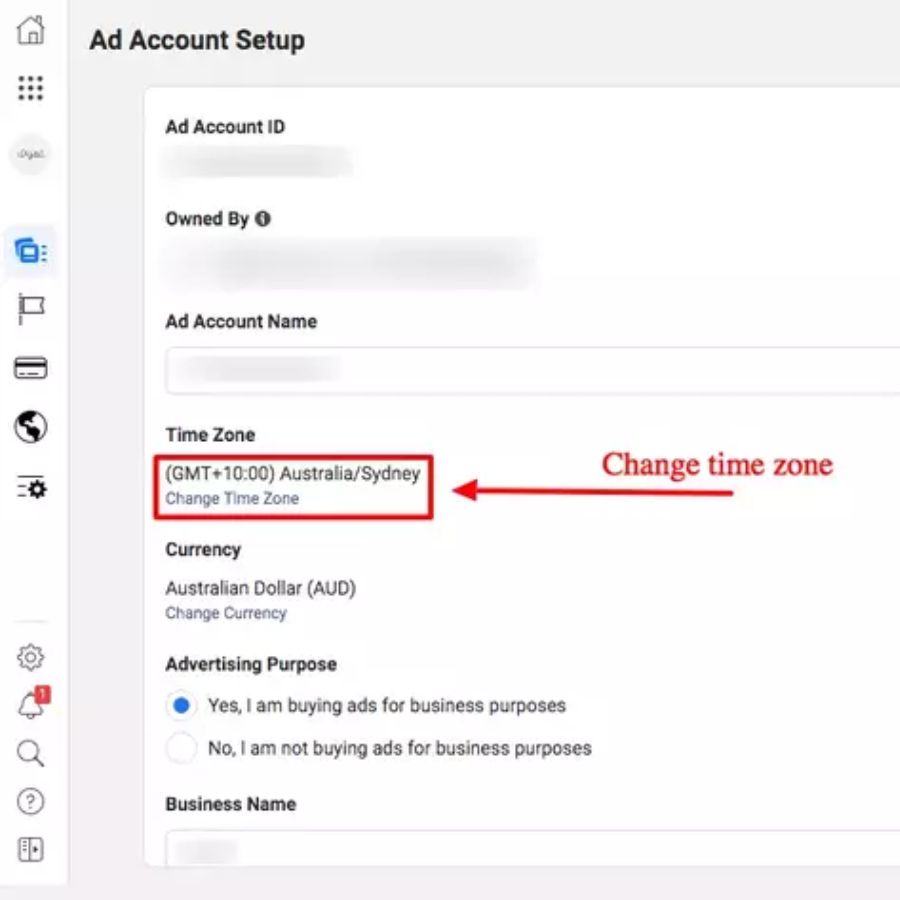
Completing these steps ensures consistent ad reporting, prevents scheduling mistakes, and allows accurate tracking. For businesses looking for high stability, using a Facebook Ads account with spend history is often the best way to ensure your tracking remains accurate. Always double-check your time zone before activating ads to avoid unexpected billing or timing issues. Keeping all accounts aligned simplifies cross-account performance analysis and improves decision-making.
4. How to Change Time Zone on Facebook Business Page
Unlike ad accounts, a Facebook Page does not have a direct time zone setting. Instead, the displayed time is determined by the page’s location and the set business hours. Adjusting these ensures your audience sees accurate timings for posts, events, and services, which is essential for dynamic Facebook ads. To update your Facebook time zone settings, follow these steps:
- Step 1: Go to your Facebook Page and click Edit Page Info.
- Step 2: Under Location, verify your business address and adjust the map pin if needed.
- Step 3: Scroll to Business Hours and set the operating times that match your local schedule.
- Step 4: Save changes to ensure the page reflects the correct time.
This process aligns your page’s displayed hours with real-world operations. For precise management, use Meta Business Suite to check how your page timings appear across devices.
Tip: Ensure your business address and map pin are correctly set to keep your page time zone accurate.
5. How to Change Facebook Time Zone on Mobile
Changing time display on your page from a phone involves editing the page’s address and hours rather than a direct clock setting. Because Pages follow location and operating hours, you must update those fields in the mobile app. If you need to change time zone on facebook business page, do it carefully so post timestamps and event times match your real schedule. Below are concise steps for each platform.
On iPhone
Here’s how you can quickly update your Page’s business details on an iPhone:
- Open the Facebook app and tap your page.
- Tap Edit Page (or the three dots) > Page Info.
- Tap Location to update the business address and move the map pin.
- Tap Hours and set opening and closing times.
- Save changes; the page will show the local time tied to that address.
On Android
If you’re using an Android device, follow these steps to make the same updates:
- Launch Facebook and select your page.
- Tap Edit Page > Page Info.
- Update the Location and adjust the map marker.
- Set Business Hours to reflect local operating times.
- Save to apply; timestamps will follow the listed location.
To ensure accurate results, verify the address after you change time zone on facebook business page and test how times display on desktop and mobile. If you must, repeat the address update to fully align page timing with your locality, especially after you change time zone on facebook business page for multi-location management.
6. How to Change Time Zone on Facebook Event
Setting the right time zone is important if bạn muốn change time zone on Facebook business page–linked events or keep your schedule accurate across regions. Facebook lets you adjust this during setup or after the event goes live.
Set the Correct Time Zone When Creating a New Event
Choose the correct time zone as you set up your event. This helps avoid confusion for attendees in different locations.
- Open the event creation form and scroll to Date and Time.
- Select Time Zone and pick the region that matches your event before publishing.
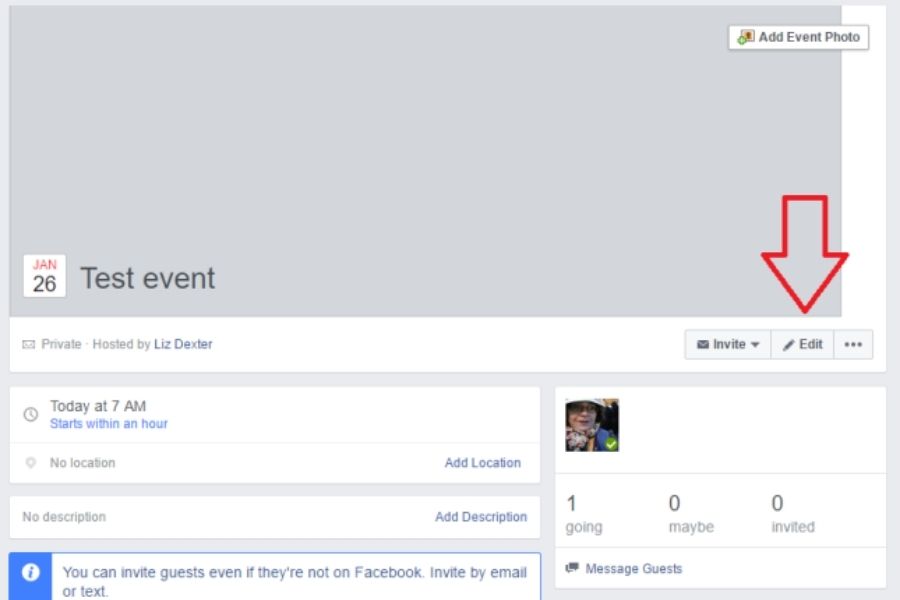
Update the Time Zone for an Existing Event
You can also correct the time zone on an event that is already active. To update it, open the event, click Edit, adjust the time zone, and save your changes. Changing the time may send alerts to guests, so review the new details before confirming.
If the option does not appear, check your device’s time zone, as Facebook may use your system settings.
FAQs
What Is the Default Time Zone for a Facebook Ad Account?
A new ad account uses the time zone chosen during setup. That setting fixes how daily reporting and billing cycles run. If you want consistent reports, make that choice carefully when you create the account. change time zone on facebook business page is not available for existing ad accounts; you must set a new account to alter the zone.
Can You Change the Time Zone on a Personal Facebook Account?
No. A personal profile shows times based on your device or browser clock. Update your phone or computer clock if timestamps look wrong. For Pages, adjust the business address and hours instead of trying to change time zone on facebook business page directly.
Does Changing the Time Zone in Ads Manager Affect Anything Else?
Because you cannot edit an existing ad account’s zone, switching requires a fresh account. That affects billing cycles, campaign schedules, and how reports line up. Plan migrations to avoid interruptions and to keep reporting consistent after you change time zone on facebook business page.
Understanding how to change time zone on Facebook business page helps you maintain accurate data and ensure your campaigns operate at the right time. Once everything is set up correctly, you can manage and scale your ads with greater confidence. If you want a safer, more stable advertising system, consider using a Facebook ads account for rent from NEMI Ads’ premium ad account rental serviceto optimize your business efficiency and minimize technical risks.